
Zoom integration to import calls
TL;DR: The Zoom integration pulls your Zoom Cloud call transcripts into Usersnap as feedback items. AI auto-tags them by theme, sentiment, and opportunity, so customer interviews, support escalations, and discovery calls become searchable evidence next to your in-app and survey feedback. Setup takes under five minutes.
What is the Zoom integration?
The Zoom integration is one of Usersnap's Channels, AI-powered connectors that ingest customer conversation data from outside Usersnap and turn it into structured, discovery-ready feedback. With Zoom connected, every recorded Zoom Cloud meeting transcript flows automatically into your selected Usersnap projects.
Instead of asking a product manager to listen back through hours of recordings, the transcript arrives as a feedback item with themes, sentiment, and emerging opportunities already extracted by Usersnap Automations. Customer interviews, sales calls, support escalations, and user research sessions land in the same workflow as your in-app feedback and surveys.
Which Usersnap plan includes the Zoom integration?
The Zoom integration is part of Channels, Usersnap's AI-powered data ingestion framework. It's available with the AI sidekick add-on. See the Usersnap pricing page for the current plan and feature availability. If you don't see Channels in your dashboard, contact your Usersnap CSM or reach support.
Channels works out of the box once the add-on is on your plan. You do not need to toggle "AI features" separately or accept an extra opt-in banner to use it.
You also need a Zoom account with Cloud Recording enabled. The integration reads Zoom Cloud transcripts, so meetings recorded locally to a device cannot be ingested.
How do I connect Zoom to Usersnap?
Before you start, make sure you have:
- An active Usersnap Admin role on the space you want to connect
- A Zoom account with Cloud Recording and automatic transcription enabled (in Zoom: Settings → Recording → Cloud recording → Audio transcript)
Then follow these four steps.
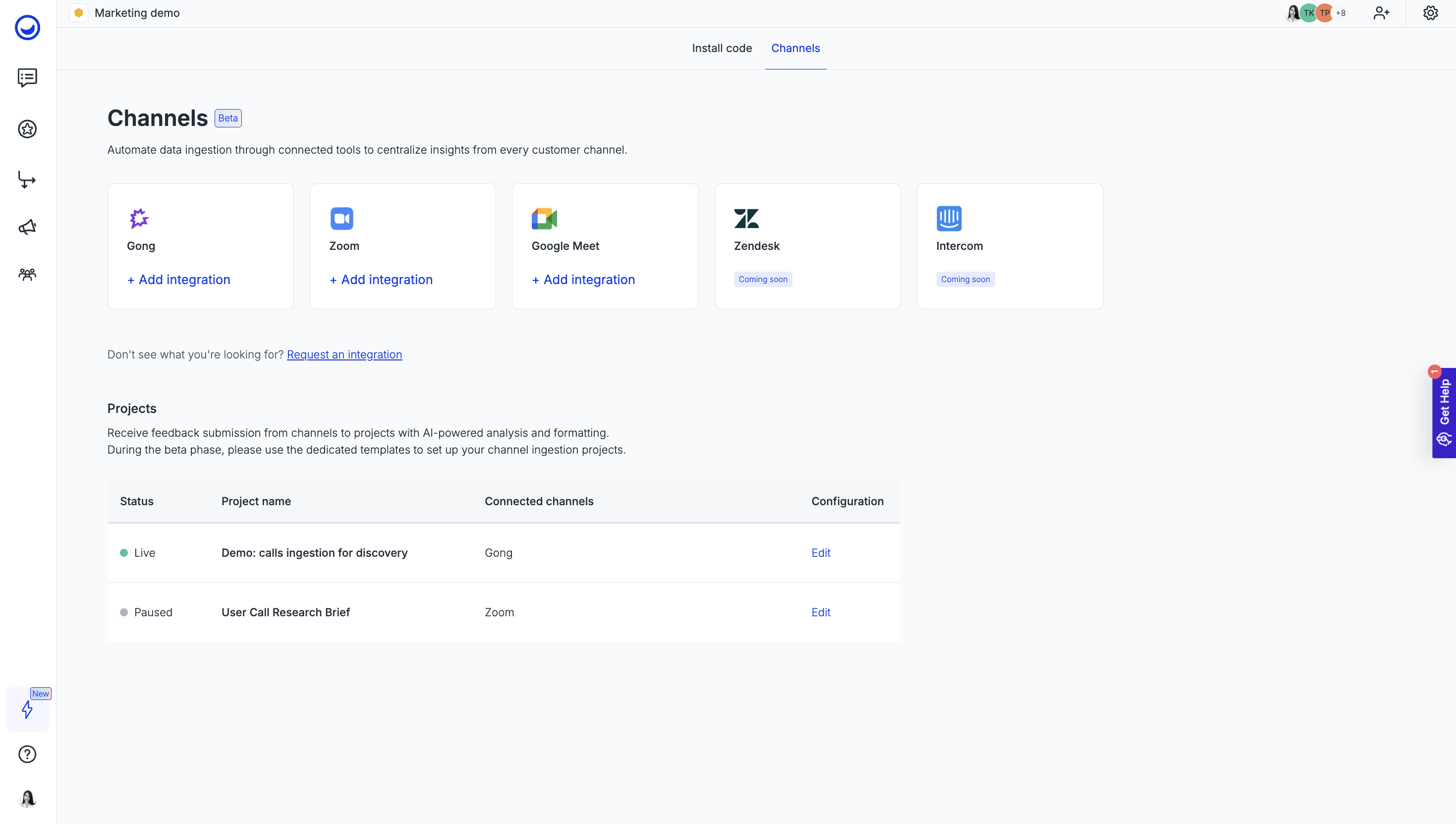
- In Usersnap, go to Setup → Channels to see the list of data ingestion channels.
-
Select Zoom and continue to log in to your Zoom account. Review the requested permissions and confirm the connection. Zoom will return you to Usersnap once authentication succeeds.
-
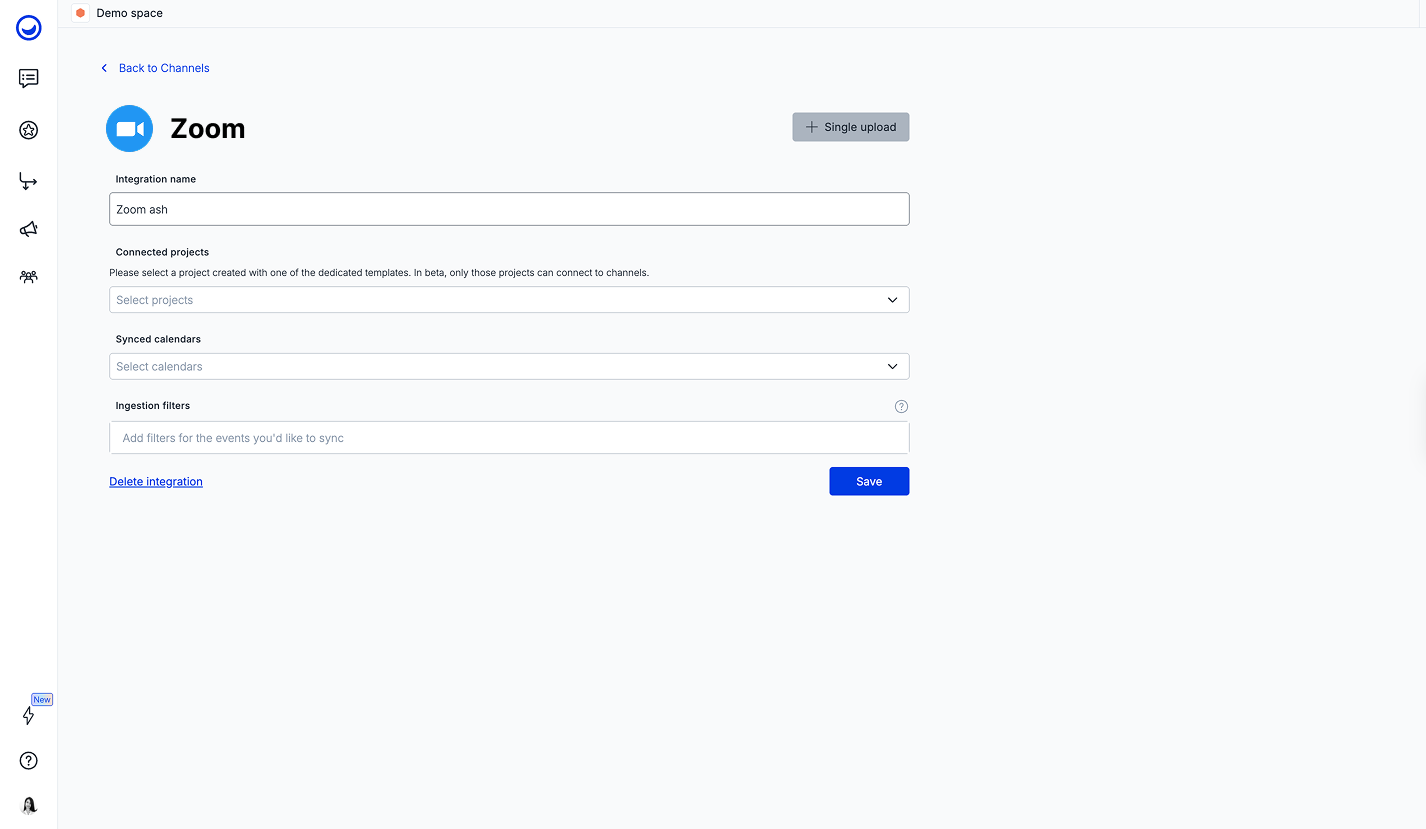
Configure which Zoom Cloud transcripts you want to push and to which Usersnap projects. Each project can receive transcripts from up to 10 connected channels, and a single Zoom connection can feed up to 3 projects in parallel.
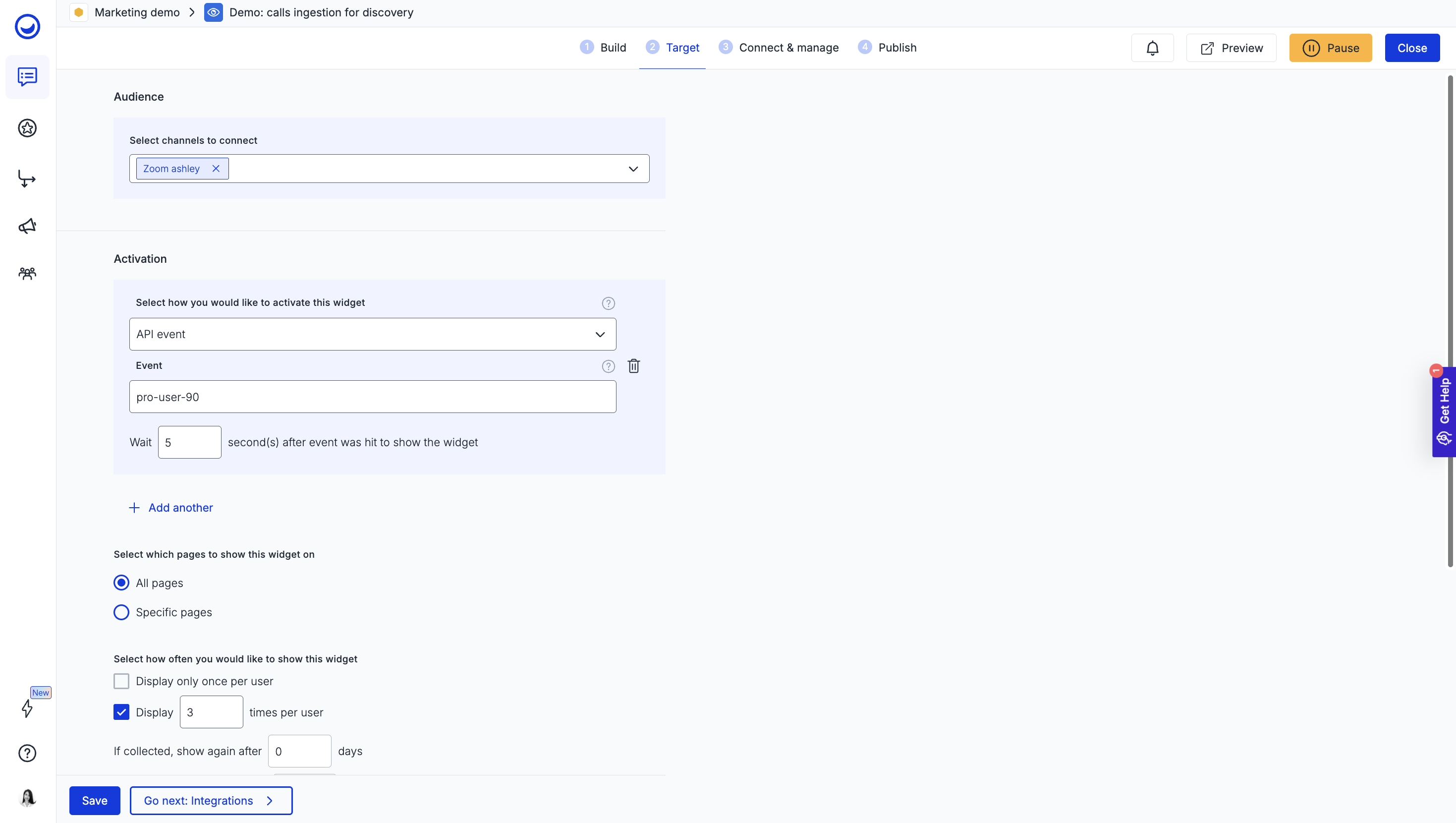
- In the project's Channels configuration, you can see and edit which channels are connected and review the volume of transcripts coming in.
If something doesn't work as expected, see the troubleshooting section below or reach out to support.
How does Zoom call data show up in Usersnap?
Once connected, every Zoom Cloud meeting that finishes processing gets turned into a feedback item in the projects you selected. Each item carries:
- The full transcript (searchable)
- AI-extracted themes identified by Automations
- Sentiment scored at the conversation level
- Linked opportunities surfaced on the Opportunities Board, so recurring pain points become roadmap candidates instead of being lost in a recording
This is the same processing pipeline used for in-app feedback and surveys, which means call data is comparable to every other feedback channel inside Usersnap.
When should I use the Zoom integration?
Most teams set up Zoom for one of four plays:
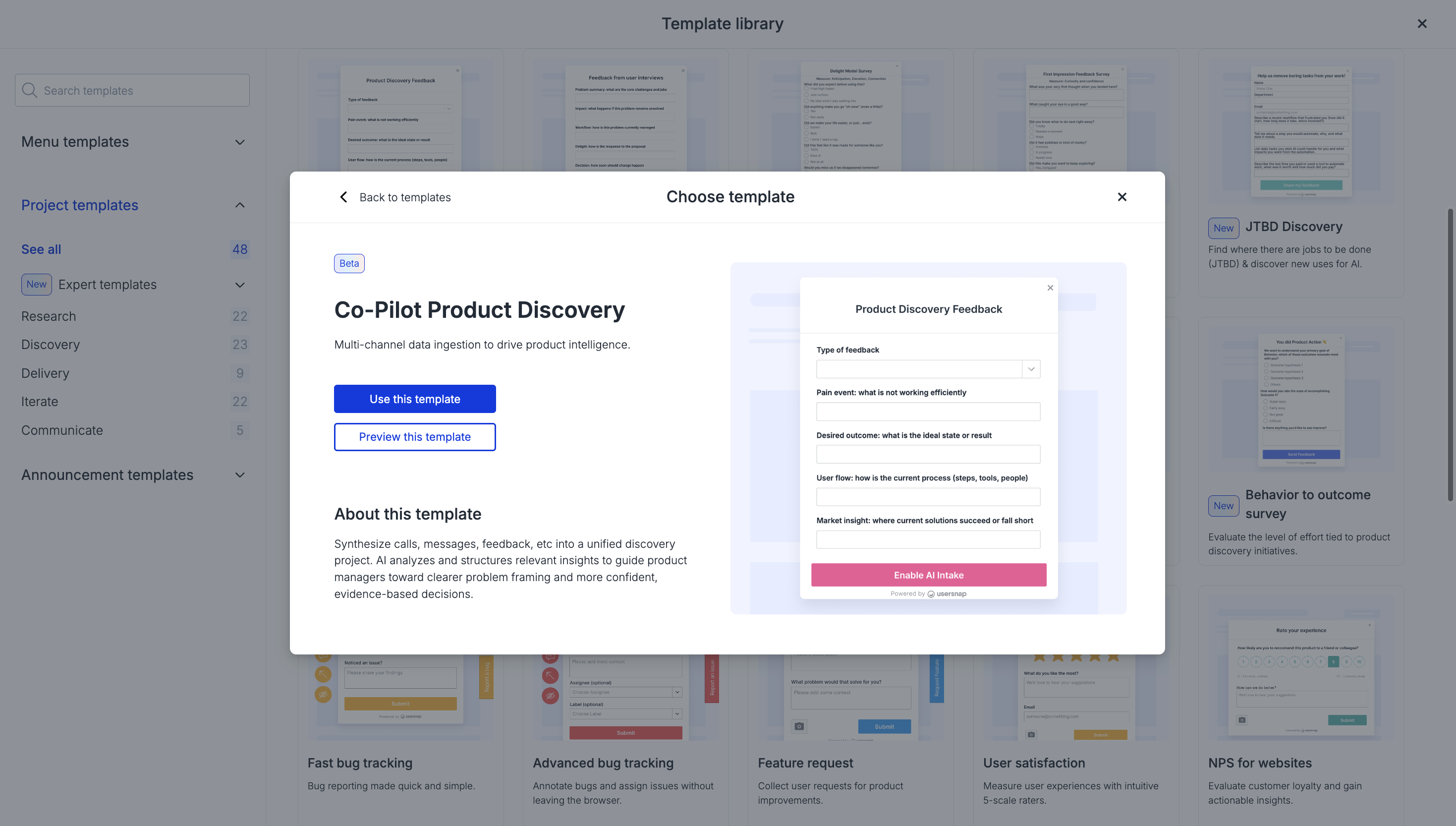
- Continuous product discovery. Pipe customer discovery calls and user interviews into a dedicated discovery project so insights cluster into themes automatically. Pair it with the AI Ingestion Product Discovery template for a ready-made setup.
- Customer research repository. Build a searchable archive of user interviews that PMs, designers, and CX can all query.
- Support escalation patterns. Send escalated customer calls into a support project to surface recurring issues that need product work, not just a ticket reply.
- Sales call signal. Route prospect calls into a project to spot common objections, feature requests, and competitive mentions.
See Channels use cases for more detail on each play.
Common issues and troubleshooting
- No transcripts appearing. Zoom Cloud Recording must be turned on for the account, and Audio transcript must be enabled in Zoom's recording settings. Locally recorded meetings will not appear.
- Permission errors after authentication. Re-authorize the connection and confirm your Zoom admin allows third-party app access for your account.
- Hit the project channel limit. A project supports up to 10 channel connections. If you're at the limit, remove a lower-priority channel before adding Zoom or split workflows across projects.
- Hit the channel project limit. A single Zoom connection feeds up to 3 projects. If you need wider distribution, route transcripts into a discovery project and use views/segments rather than connecting more projects.
How do I disconnect or remove the Zoom integration?
If you no longer want to use the integration, open the Zoom configuration in Usersnap and choose Delete integration.
When you remove it:
- Data sync stops immediately. No new Zoom transcripts will be imported into Usersnap.
- Previously ingested feedback items remain in your projects, so historical context is not lost.
- Access is revoked. Usersnap no longer has permission to read your Zoom account.
If you reconnect later, syncing resumes for new calls. Historical calls recorded while the integration was disconnected are not backfilled.
Related features
- Channels data ingestion: the parent framework for all conversation channels
- 7 Channels Co-pilot: the AI assistant that turns ingested conversations into opportunities
- Opportunities Board: where extracted themes become a prioritized roadmap
- AI-powered Automations: the auto-tagging and sentiment pipeline
- AI Ingestion Product Discovery template: ready-made setup for discovery teams
Turn customer calls into a prioritized roadmap.
Start free with the first 20 feedback items, no time limit and no credit card.
Start free · Book a demo
Updated 4 months ago