
Intercom integration to import conversations
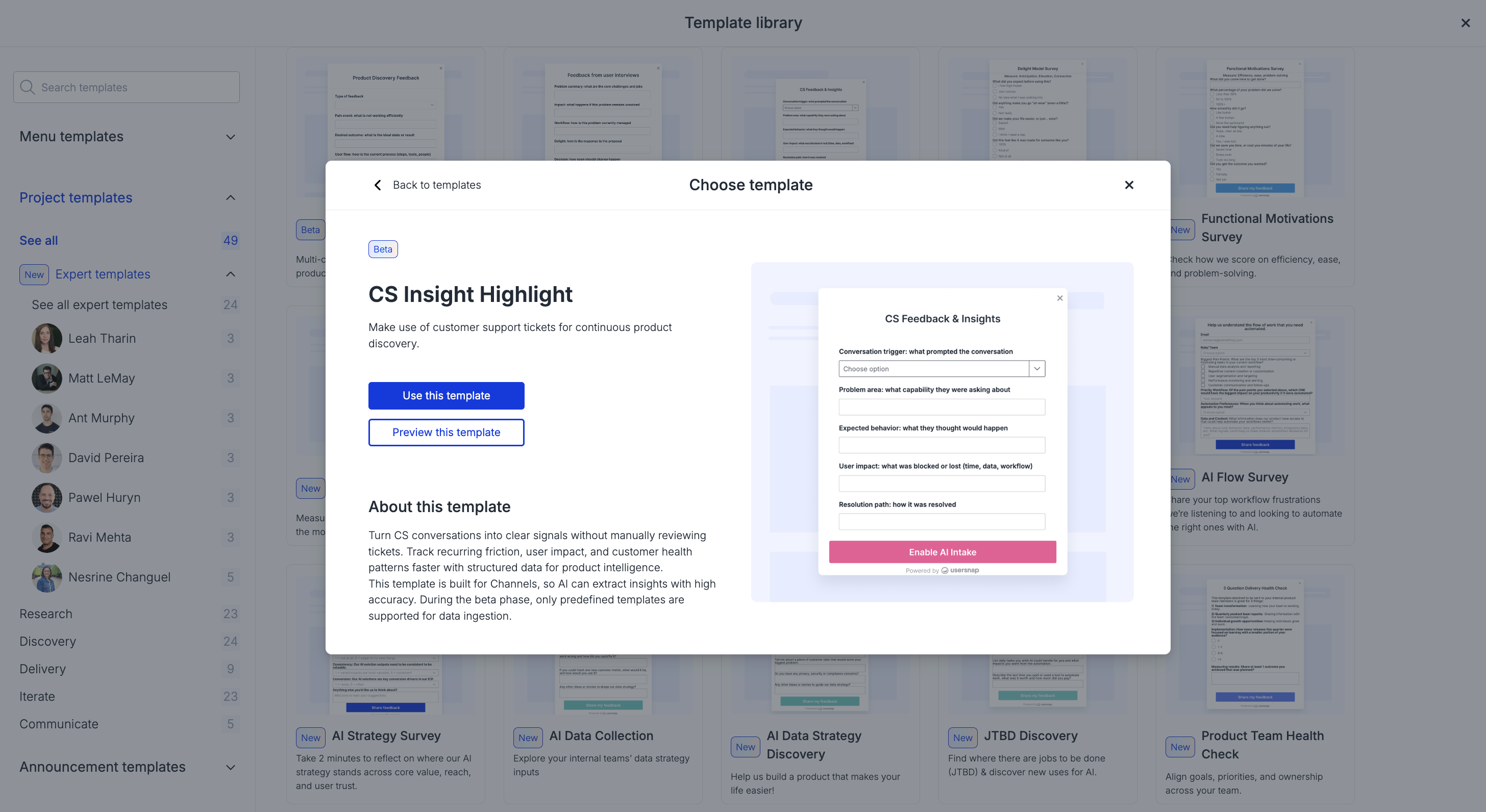
Intercom as a channel pulls your closed Intercom conversations into Usersnap and reformat the insights as feedback items. AI extracts product discovery elements and maps them to the project templates' fields, as well as tags the topics and analyze the sentiment. Channels ingest support conversations and tickets to make them easy to read and actionable, helping product teams to centralize CS evidence alongside in-app feedback and surveys collected natively with Usersnap.
What is Intercom's channel integration?
The Intercom channel integration is one of Usersnap's Channels, AI-powered connectors that ingest customer conversation data from outside Usersnap and turn it into structured, discovery-ready feedback. With Intercom connected, your closed conversations flow automatically into your selected Usersnap projects.
Instead of asking a PM to dig back through support history, each conversation arrives as a feedback item with product discovery elements — problems, requests, and reference quotes. Insights are then sorted into topics and sentiment, so support conversations sit in the same workflow as your in-app feedback and surveys, ready to turn into roadmap opportunities.
This channel integration is distinct from sending Usersnap feedback items into Intercom — see the two related setups below if that's what you're looking for.
How do I connect Intercom to Usersnap?
- In Usersnap, go to Setup → Channels to see the list of data ingestion channels.
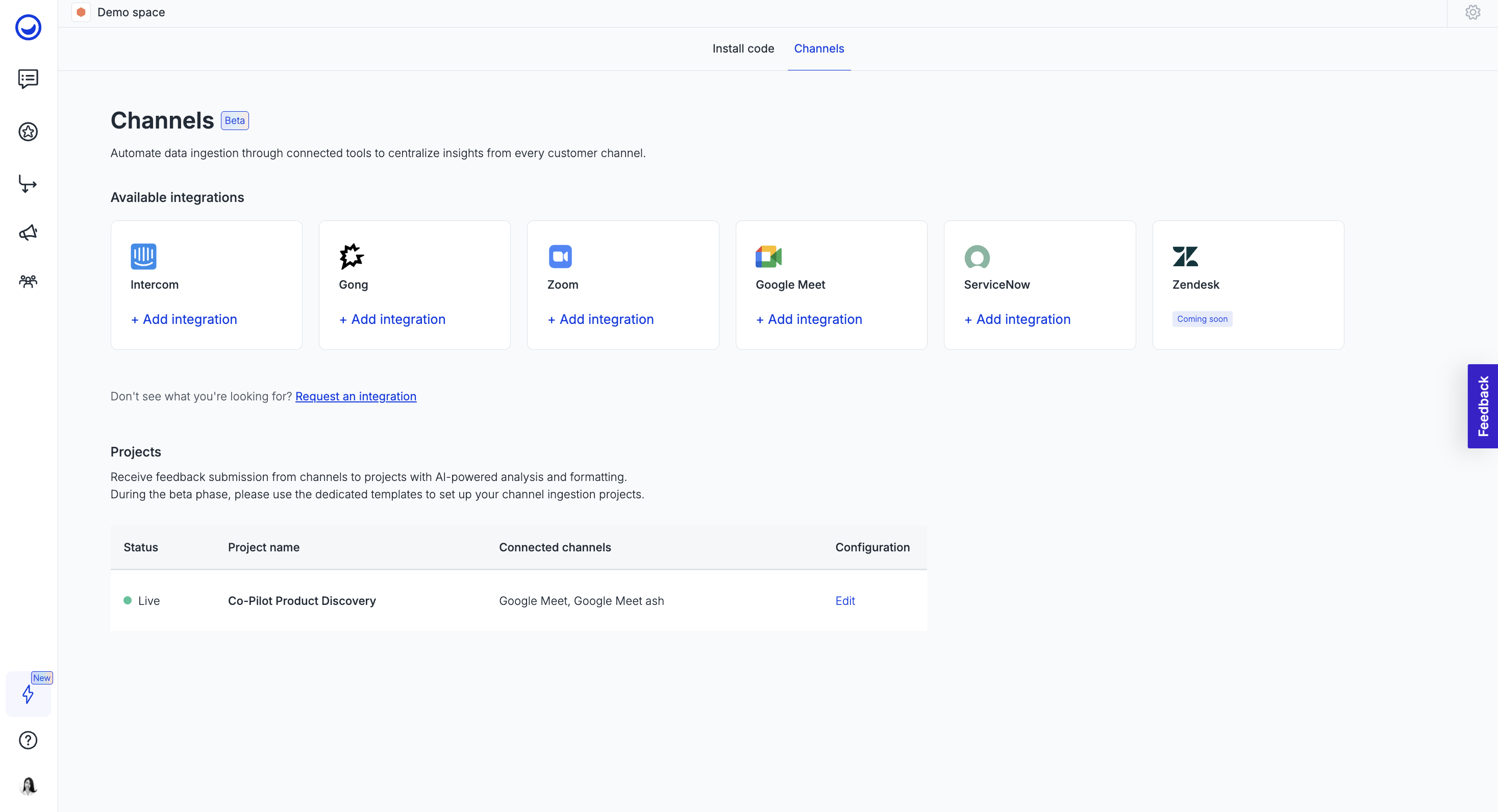
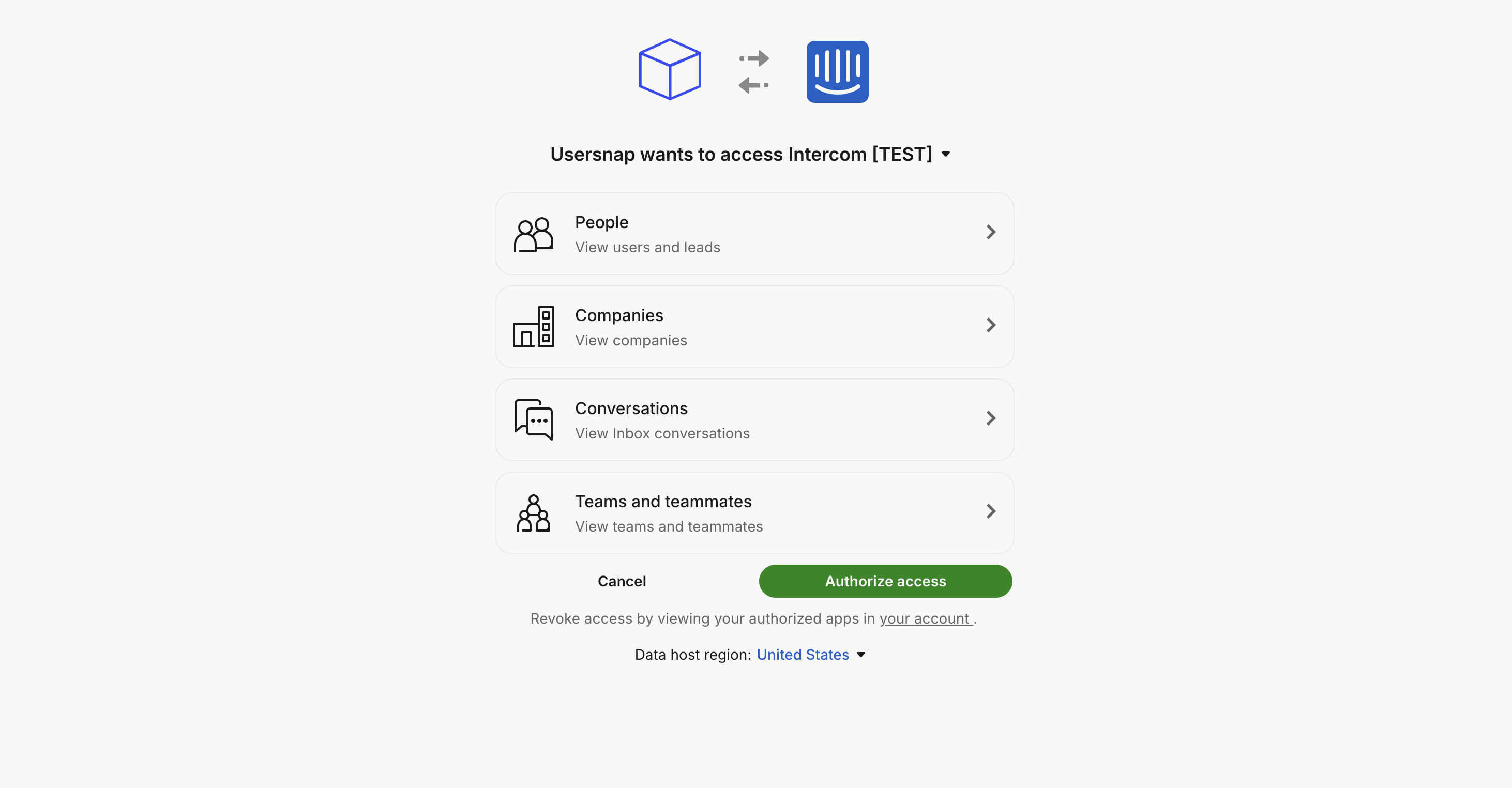
- Select Intercom and continue to log in to your account. Review the requested permissions and data host region. Intercom will return you to Usersnap once authentication succeeds.
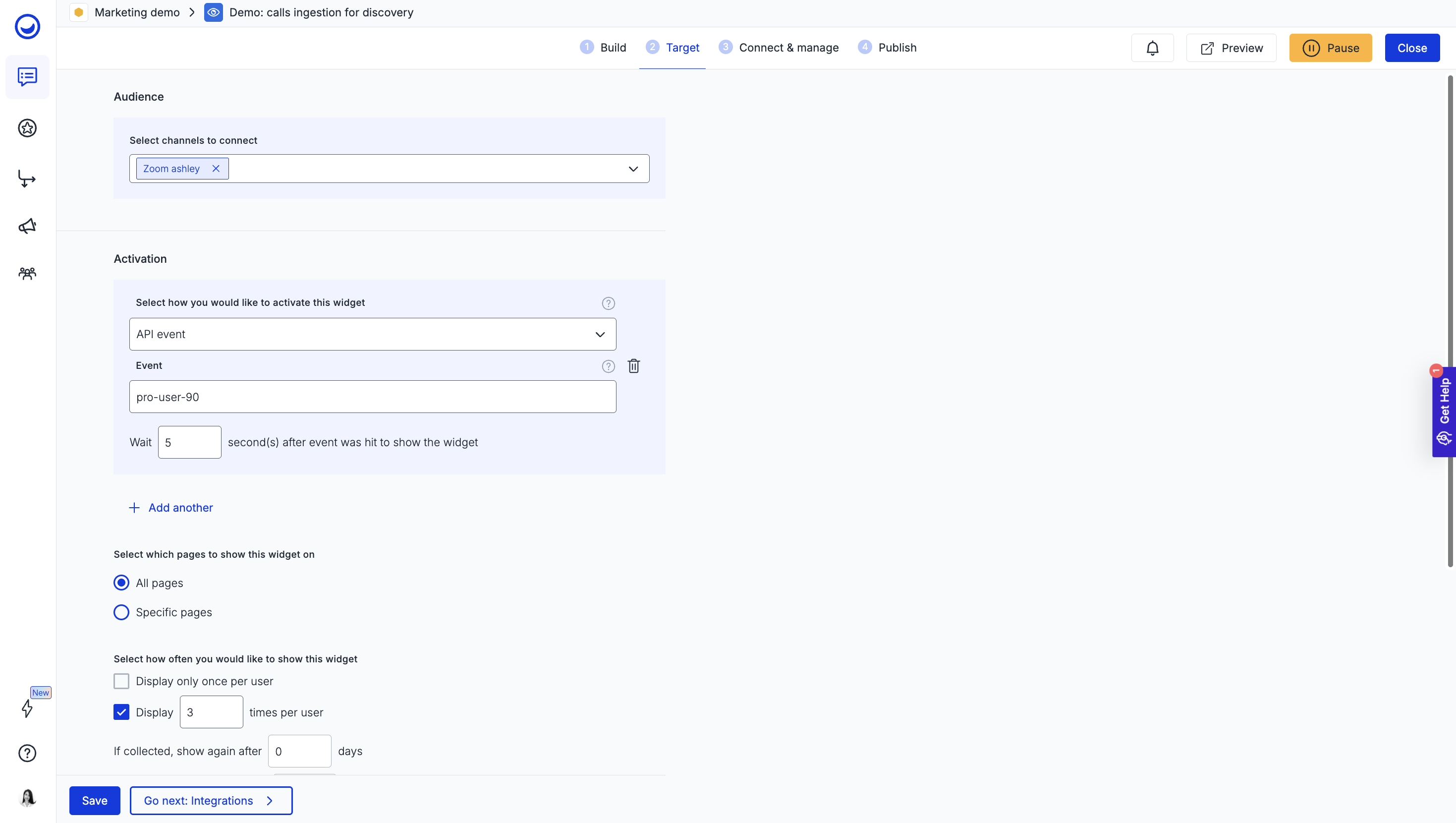
- Configure which project to push the Intercom conversations, note that only closed tickets will be ingested. Each project can receive data from up to 10 connected channels, and a single Intercom integration can feed up to 3 projects in parallel.
If something doesn't work as expected, see the troubleshooting section below or reach out to support.
How does Intercom data show up in Usersnap?
Once connected, every closed Intercom conversation gets turned into feedback items in the projects you selected. The structure of the feedback is according to your project template fields. In general, each item carries:
- The full conversation as data source (searchable)
- AI-extracted fields inputs, which are your product discovery elements to understand the conversation trigger, problem area, health signal, etc (with reference of exact customer quotes)
- Email(s)
- Date
- User data
When should I use the Intercom channel?
Most support and product teams set up the Intercom channel for one of these plays:
- Auto-sync closed conversations to user feedback hub. So your team are empowered with direct access to daily customer insights, without waiting on a manual handoff.
- Surfacing churn signals. Catch recurring pain points and frustration in support conversations before they show up as cancellations.
- Feature request tracking. Let AI extract and cluster expected outcomes and desired behaviors buried in conversations, instead of relying on support agents to flag and forward them manually.
- Holistic customer view. Combine support conversations with in-app feedback and surveys for a single picture of what users are asking for and how they feel.
See Channels use cases for more detail on each play.
Related features
- Channels data ingestion: the parent framework for all conversation channels
- 7 Channels Co-pilot: the AI assistant that turns ingested conversations into opportunities
- Opportunities Board: where extracted themes become a prioritized roadmap
- AI-powered Automations: the auto-tagging and sentiment pipeline
- AI Ingestion Product Discovery template: ready-made setup for discovery teams
Turn customer conversations into prioritized opportunities. Start free with the first 20 feedback items, no time limit and no credit card. Sign up now · Book a demo
Updated 4 months ago