
ServiceNow integration to report incidents
Every resolved incident in ServiceNow contains valuable user insights: from reproduction steps and agent notes to the full conversation history. The ServiceNow integration automatically converts resolved and closed incidents into Usersnap feedback items, giving product and support teams instant visibility into recurring issues without the need for manual exports.
What do you need to set up the integration
- A Usersnap space with the ServiceNow integration in the Channels section (see the guide on how to set it up below)
- A ServiceNow service account (a dedicated user used only for the integration) with the ITIL role assigned — this grants read access to the incident and interaction tables
- Permissions in ServiceNow to create a Business Rule
How to set up the ServiceNow integration
In Usersnap:
-
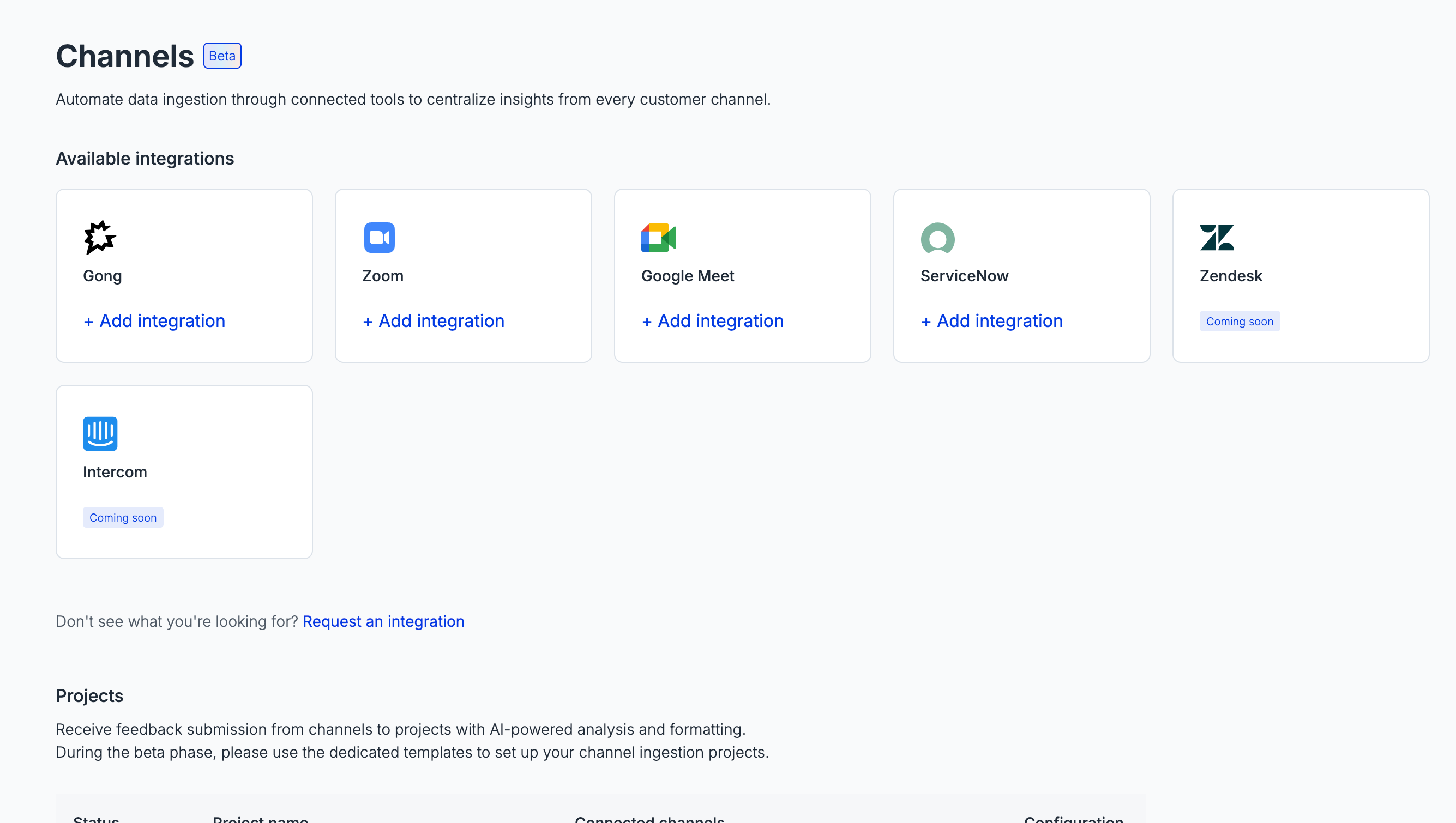
Go to Setup -> Channels to see the list of data ingestion channels.
-
Find ServiceNow in the integrations list and click “Add integration”.
-
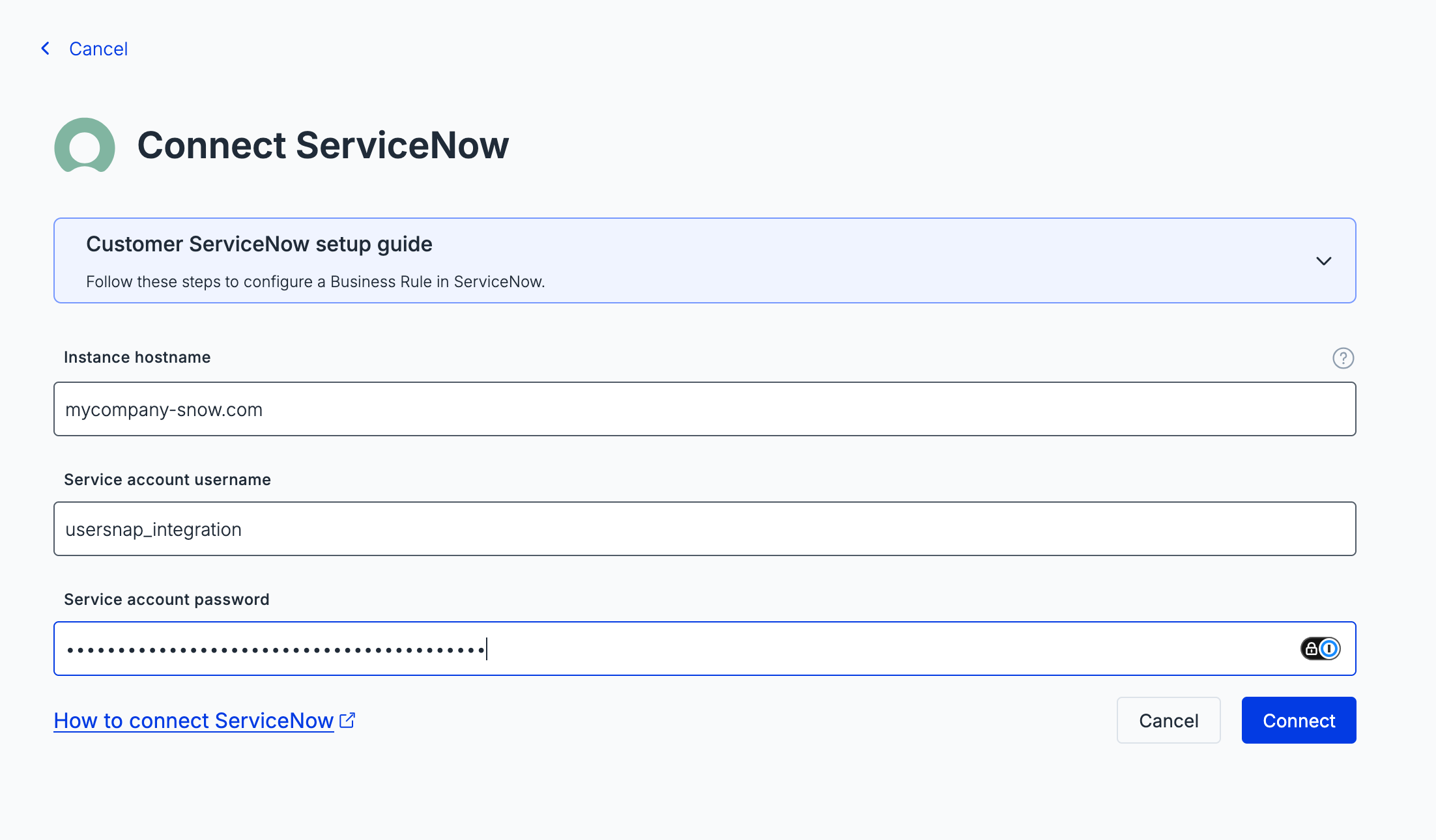
Connect the integration by entering the following details in the connection dialog:
- Instance URL — your ServiceNow domain, e.g.
dev12345.service-now.com(withouthttps://) - Username — the service account username
- Password — the service account password
- Instance URL — your ServiceNow domain, e.g.
If the connection fails
If the connection fails, double-check the instance URL and that the service account has the ITIL role.
- Once connected, the integration settings page shows two values you will need for the next step:
- Webhook URL — the endpoint ServiceNow will call when an incident is resolved
- Webhook Secret — a token used to verify that requests come from your ServiceNow instance Click the copy icon next to each value and keep them handy.
In ServiceNow:
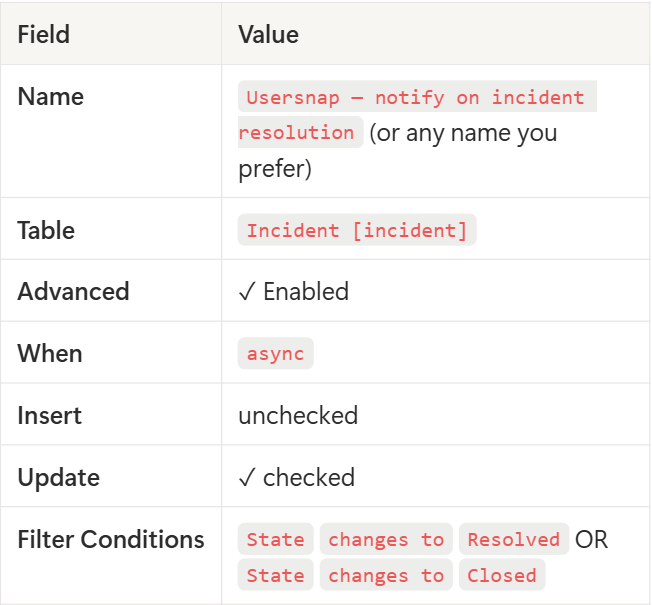
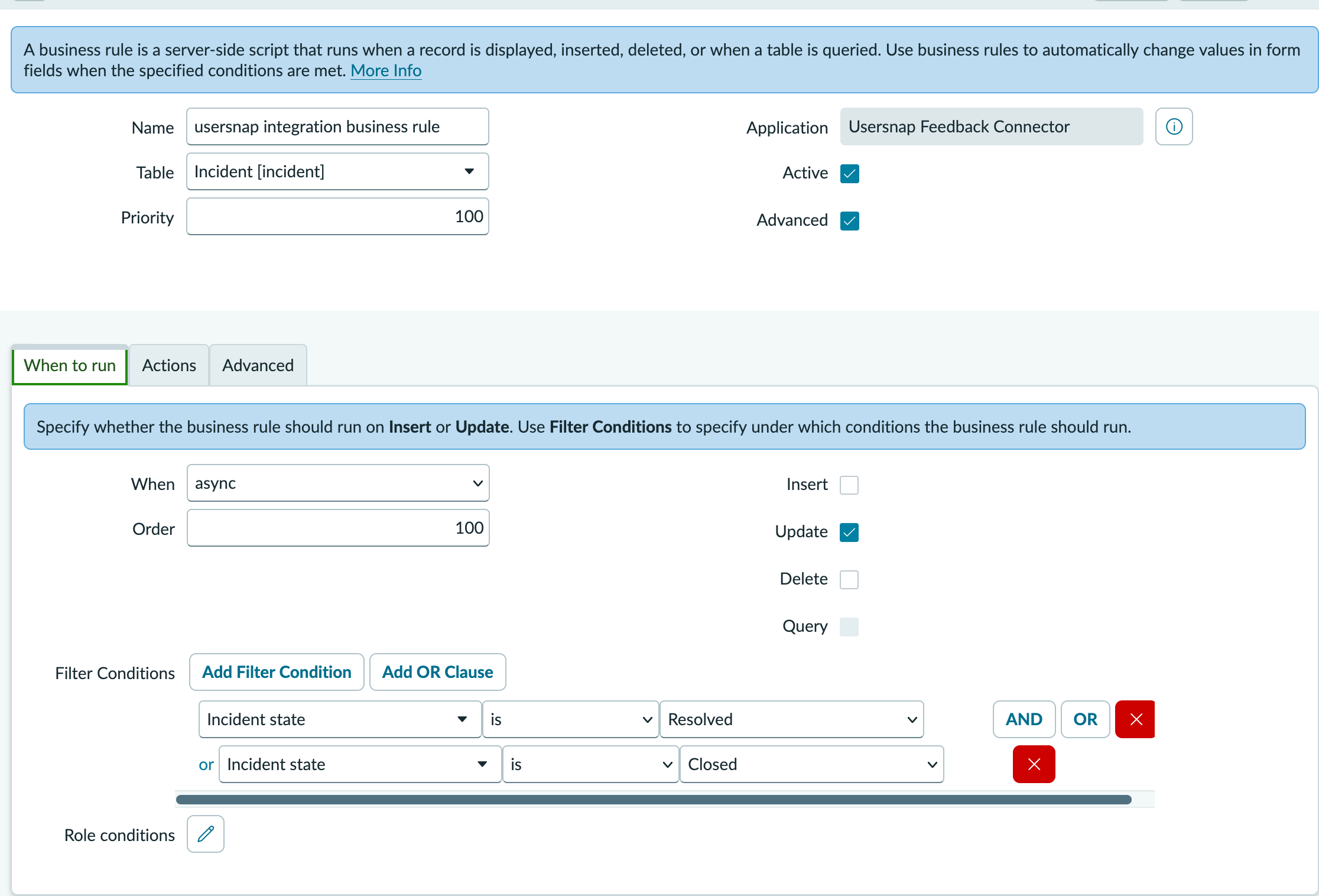
ServiceNow uses Business Rules to trigger outbound HTTP requests when a record changes. You need to create one that fires whenever an incident is resolved or closed.
- In ServiceNow, navigate to System Definition -> Business Rules.
- Click New.
- Configure the rule:
Important
The rule must be set to async. Synchronous Business Rules cannot make outbound HTTP calls.
- Click the Advanced tab and paste the following script into the Script field, replacing the placeholder values with the ones you copied from Usersnap:
(function executeRule(current, previous) {

  var webhookUrl = "YOUR_WEBHOOK_URL";      // paste from Usersnap settings
  var webhookSecret = "YOUR_WEBHOOK_SECRET"; // paste from Usersnap settings

  var caller = current.caller_id.getRefRecord();

  var body = {
    sys_id: current.sys_id.toString(),
    user: {
      email: caller.getValue("email") || "",
      name: caller.getDisplayValue("name") || "",
      company: caller.getDisplayValue("company") || "",
      department: caller.getDisplayValue("department") || ""
    },
    custom: {}
  };

  var request = new sn_ws.RESTMessageV2();
  request.setEndpoint(webhookUrl);
  request.setHttpMethod("POST");
  request.setRequestHeader("Content-Type", "application/json");
  request.setRequestHeader("X-Usersnap-Secret", webhookSecret);
  request.setRequestBody(JSON.stringify(body));
  request.execute();

})(current, previous);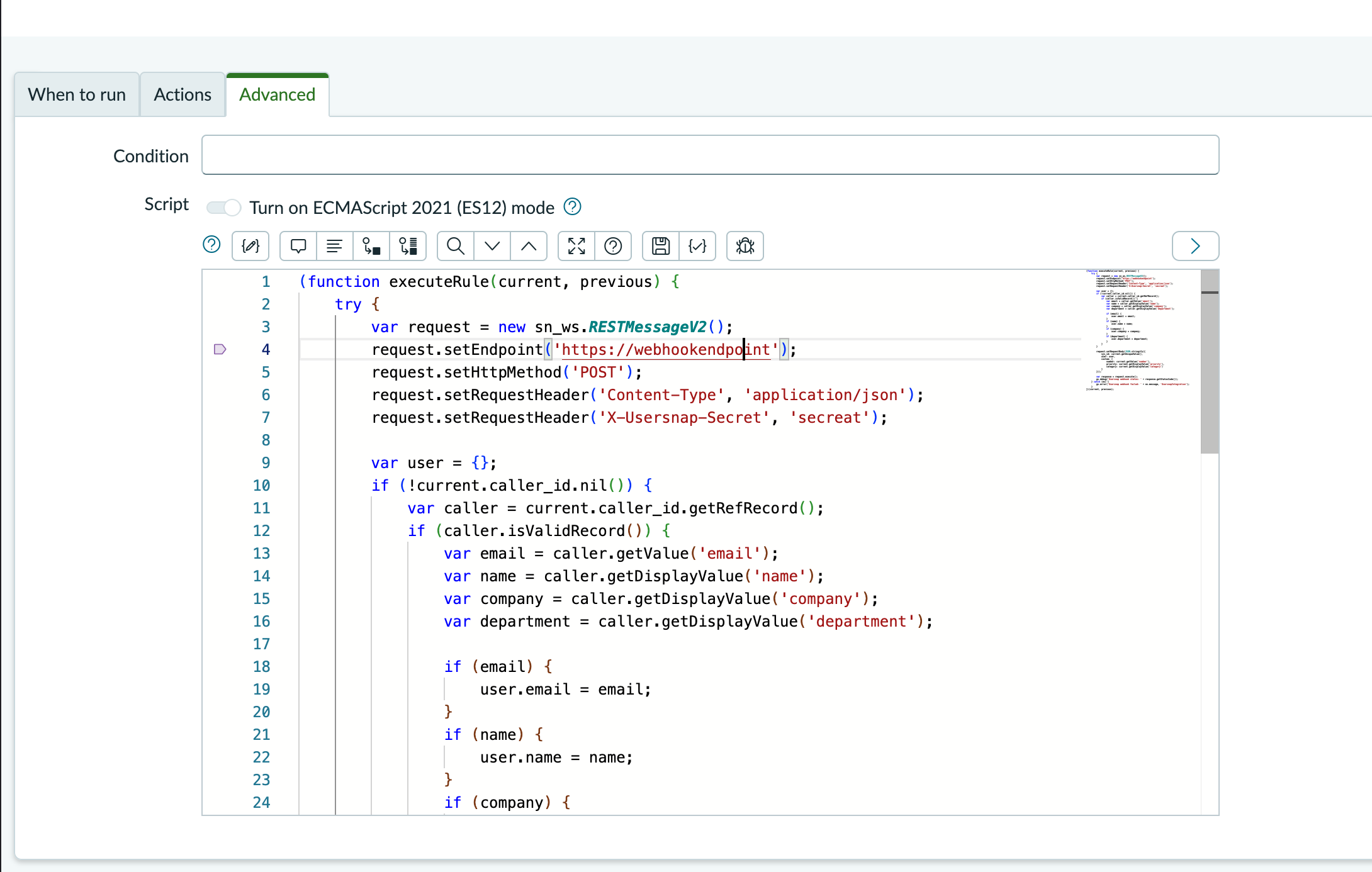
- Click Submit to save the Business Rule.
Test the integration
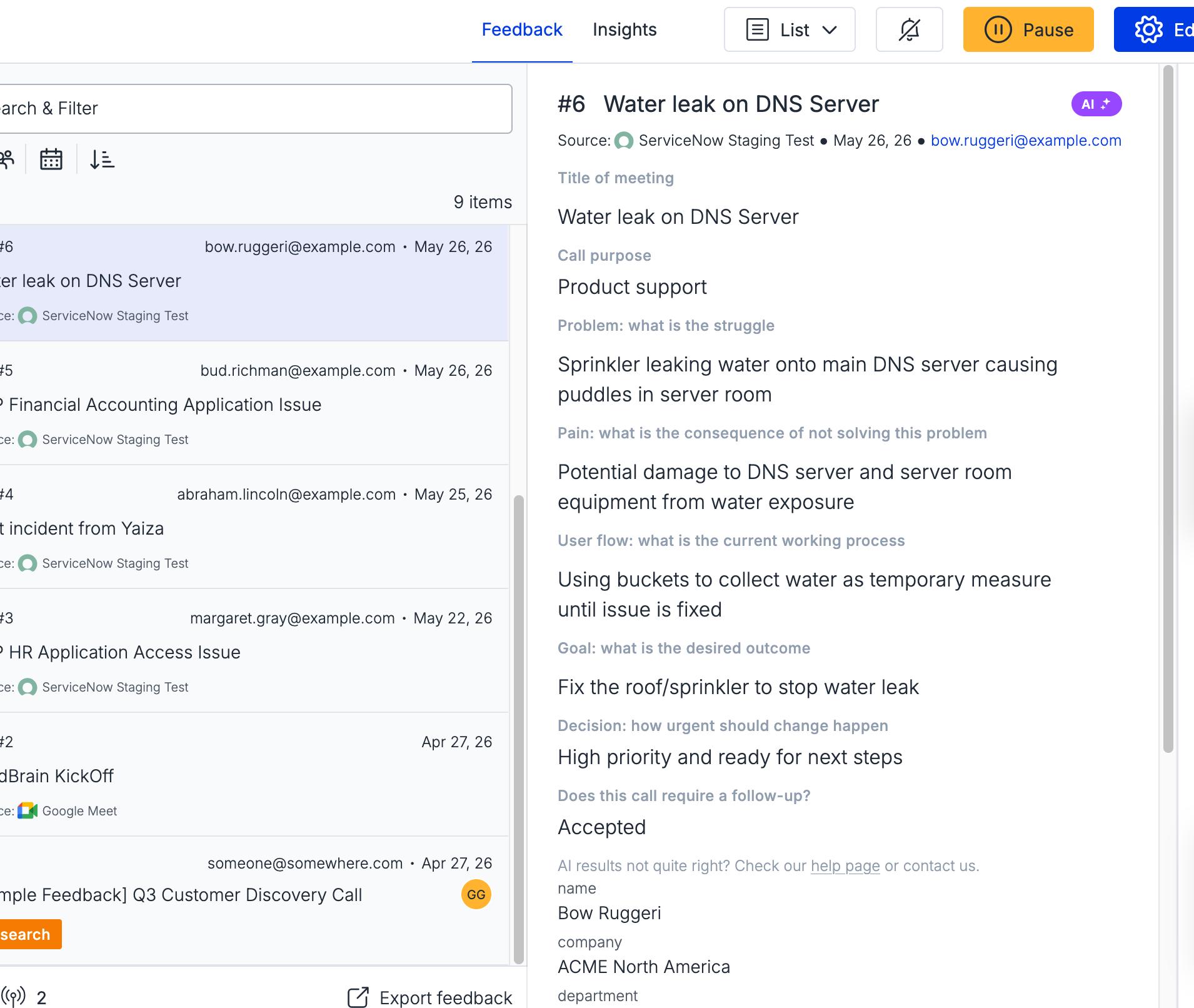
Resolve or close a test incident in ServiceNow. Within a few seconds, a new feedback item should appear in your Usersnap project.
The feedback item will include:
- The incident's short description and description as the opening message
- Any comments added during the incident as a conversation transcript
- The reporter set to the incident's caller (name and email, if available)
Pass custom data (optional)
You can attach arbitrary key-value data to the created feedback item by populating the custom object in the Business Rule script. For example:
custom: {
  incident_number: current.number.toString(),
  priority: current.priority.getDisplayValue(),
  category: current.category.getDisplayValue()
}
Custom data is visible in the feedback detail view and can be used for filtering. Requires the Custom Data feature to be enabled on your Usersnap plan.
Disconnect ServiceNow
To remove the integration, go to Settings -> Channels, open the ServiceNow settings, and click Delete integration.
- Feedback items already imported from ServiceNow are not deleted.
- The webhook URL stops accepting requests immediately.
- You can reconnect at any time by clicking “+ Add integration” again.
Updated 5 months ago