---
updatedAt: 2026-06-17T14:14:07.000Z
agentTools:
  projectIndex: https://help.usersnap.com/llms.txt
---

# Asana

## Connect Usersnap with Asana

Usersnap and Asana can be easily connected.

### Here's how it works:

Go to your Usersnap project’s Integration tab and select Asana from the grid.

<Image align="center" width="80%" src="https://files.readme.io/bc0beee-Asana.png" />

Simply sign into your Asana account.

<Image align="center" width="80%" src="https://files.readme.io/1d60709-asana_2.png" />

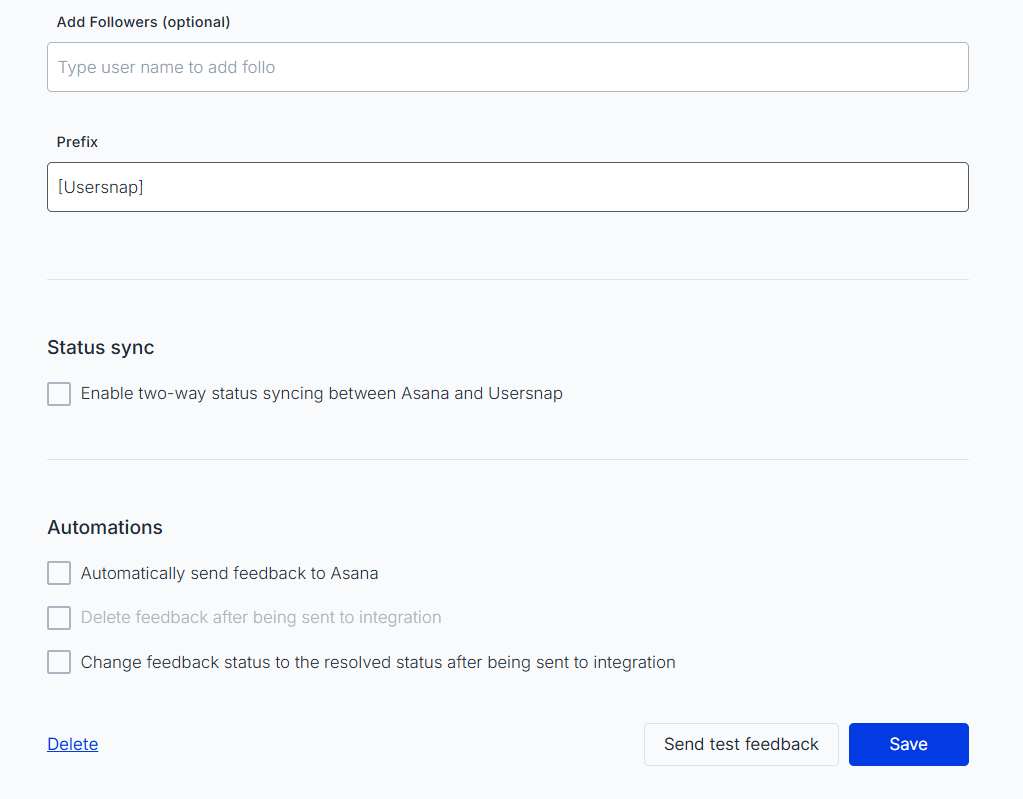
Fill out the form accordingly and don't forget to save the settings:
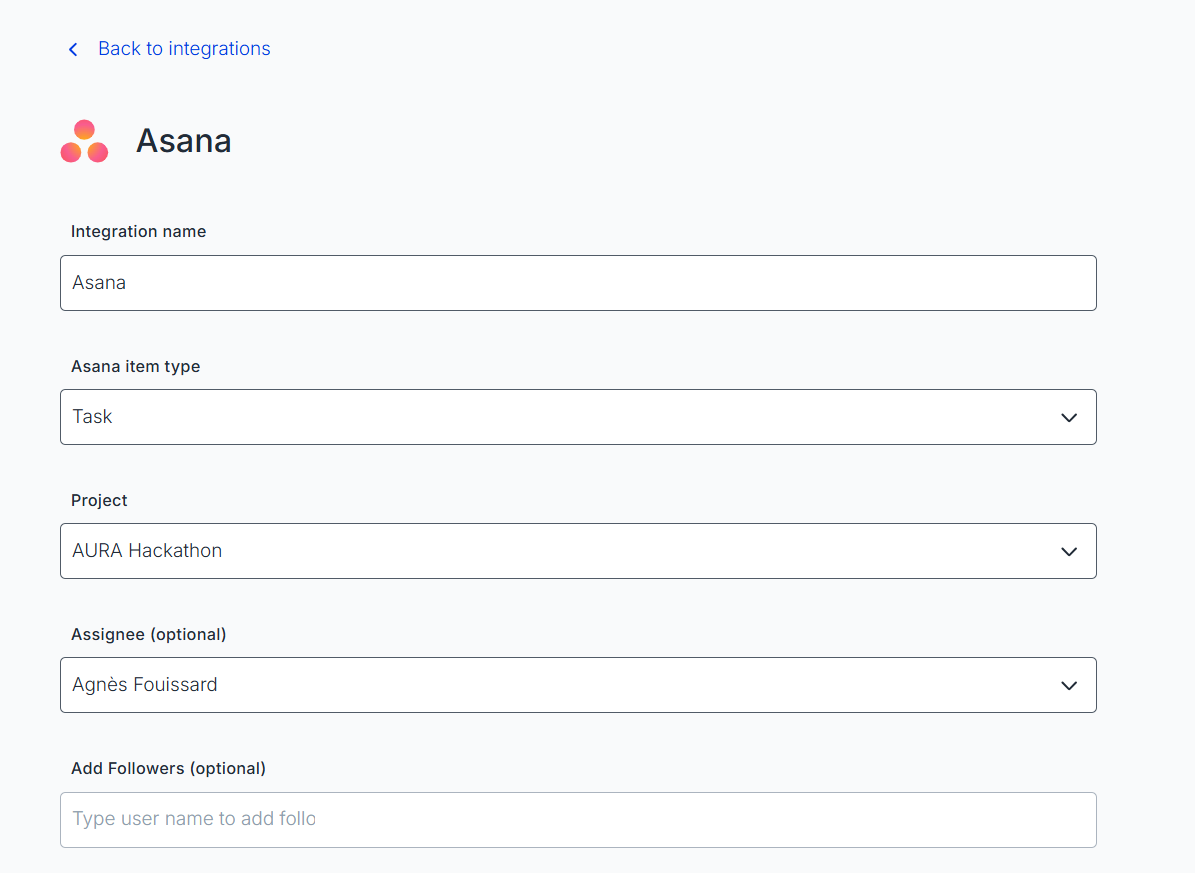
![](https://files.readme.io/dd9b6094667f9c28c3c3c79781c7b6ebc57824758e2a7d7f8fecb289168f8da2-image.png)

![](https://files.readme.io/d7047a28aff0c9cbe7e007964a498098bf186c26a61b830d3fd441ec098e4438-image.png)

### Two-way sync with Asana

You can also enable a 2-way status syncing between Asana and Usersnap by toggling on the **Status sync** option:
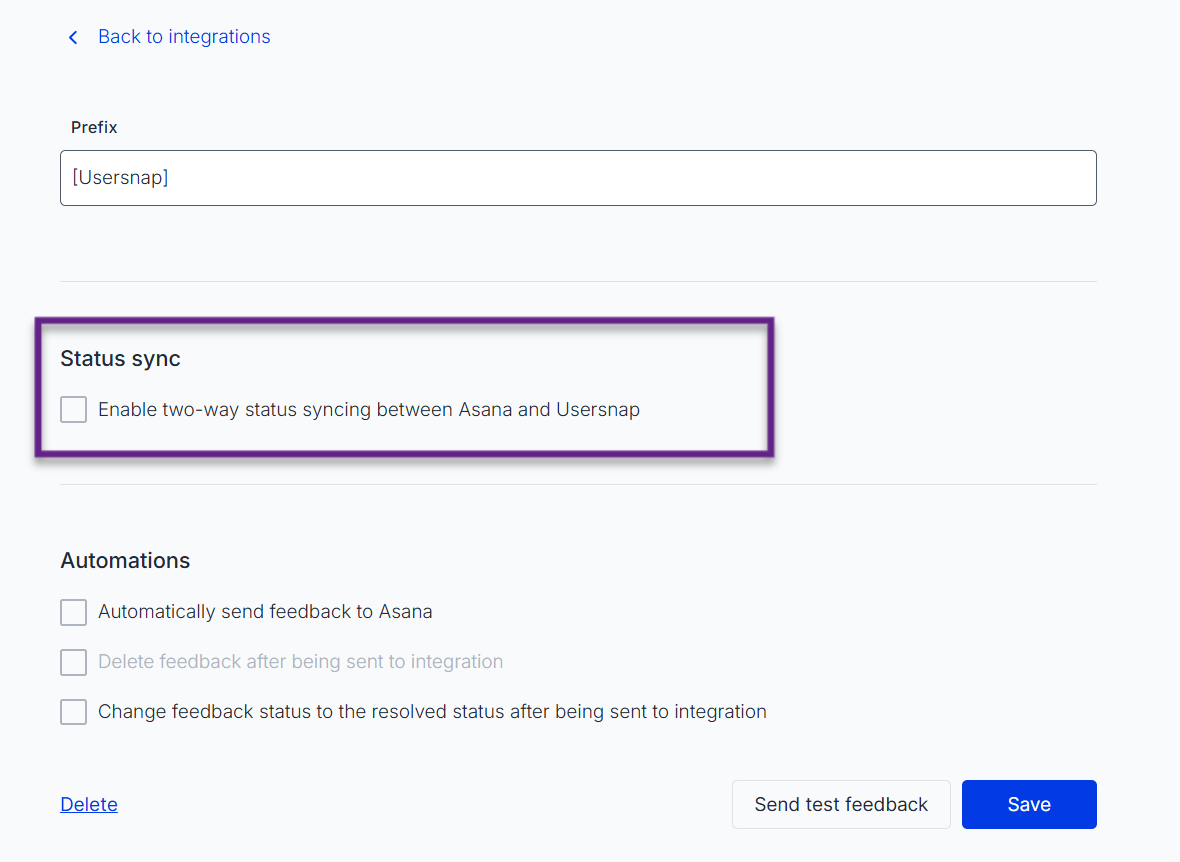
![](https://files.readme.io/4c478b5bcc806617dcd253dc9f7f3effbcb1a0c9ef35997b623dda25dd0fa9b4-image.png)

### Test the integration

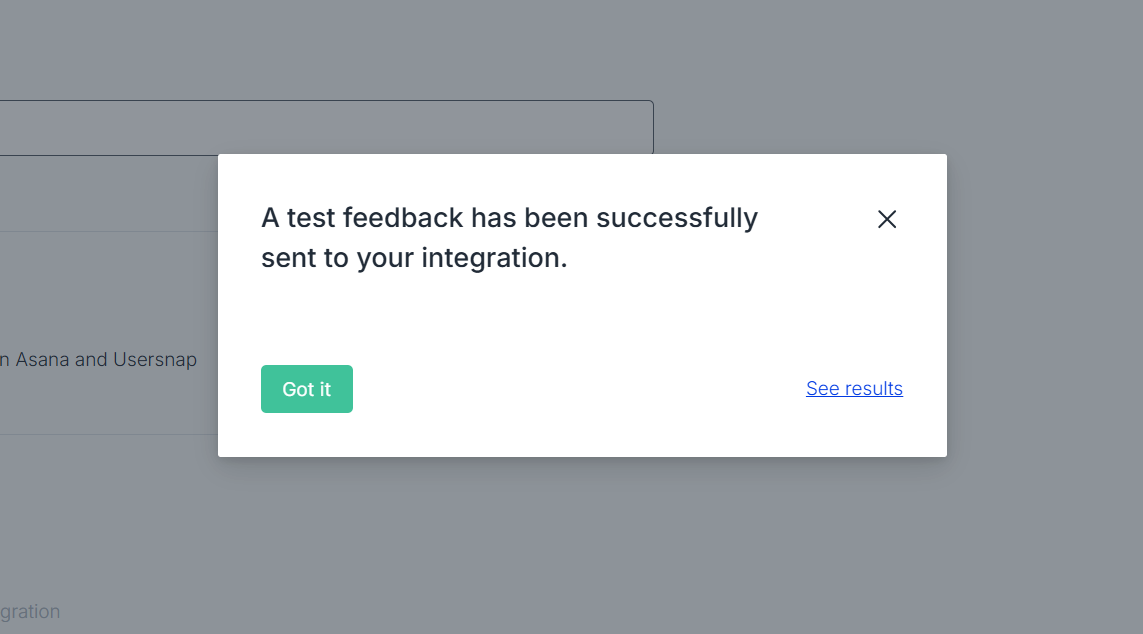
Now, test the integration by sending a test feedback item:
![](https://files.readme.io/400260e7c85aac56e28ba8c591c9db676b0e445b801a7191cef312c63952f02e-image.png)

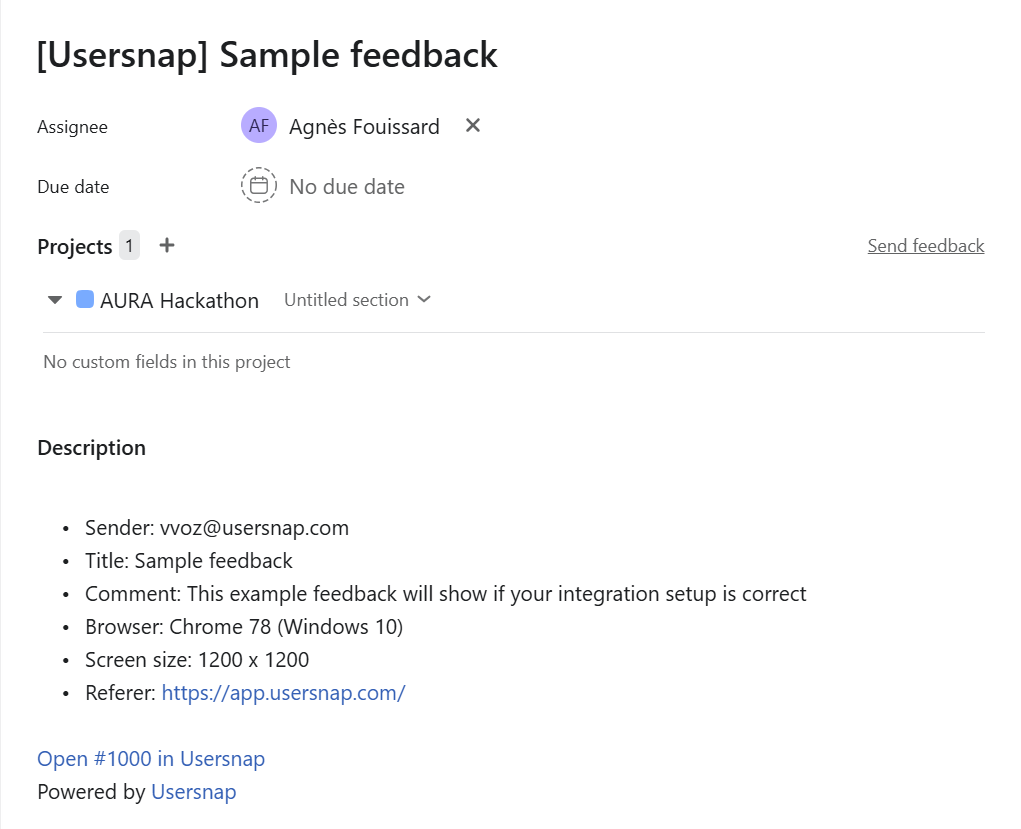
Here's what you will see in Asana:

![](https://files.readme.io/e2227300358048d78b5002b838dd18e11e66baa636df752ff9e0cc990392ef79-image.png)

<br />